Thursday, May 15, 2014

ActiveSync Troubleshooting Webcast

Mobile E-mail has become a part of everyone's life and when it comes to Corporate emails access through mobile devices it is even more critical  to deliver the service to meet the user needs without compromising on information security, In today's IT world of Consumerization, Mobility is the hot topic and with the recent innovations or we could even call these happenings as Technology advancements there is a drastic change in the trend of using Corporate issued devices to access Corporate email is changed and now it is getting accessed from wide range of devices and the BYOD ( Bring Your Own Device) is getting adopted everywhere either directly or indirectly and Mobility platform is extending beyond imagination.


When it comes to Mobile E-mail with Exchange Server or Office 365 everyone knows the role of ActiveSync and troubleshooting issues with ActiveSync is not a easy task at times and Microsoft team has understood this complexity and recently published a guided Walkthrough on the same for Administrators to analyze the issue and take necessary steps to resolve the issue. Though this is great there are scenarios where we require some advanced Troubleshooting steps like Exchange ActiveSync Mailbox Logging and a recent Blog post on the topic was published in EHLO Blog gaining more attention towards the community to do some deep dive troubleshooting with ActiveSync.

Under The Hood: Exchange ActiveSync Mailbox Log Analysis

Blog post I wrote during the release time of this above blog post to reference you on the topic with some add-on read.

Exchange ActiveSync Mailbox Log Analysis


The Excellent Troubleshooting post referred above is written by Jim Martin MSFT  Sr. Support Escalation Engineer who is renowned for his excellent skills in troubleshooting Active Sync issues, this post is written here today to give you a refreshment on the ActiveSync topic and update you about the upcoming Ignite Webcast event on this ActiveSync Troubleshooting scheduled next week where Jim will demonstrate this Exchange ActiveSync Mailbox logging feature in live and other key discussion on the topic you will get a chance to get your queries cleared with the expert on the event to know more and provide a better support experience to your end users.


Register here: ActiveSync Troubleshooting

Additionally, Review the below article covering a vital ActiveSync issue with Exchange Online ( Office 365 ) and you also have the workaround for the issue along with the reference to another knowledge base which guides you over enabling ActiveSync logging for the affected user using Outlook WebApp.

Review here: A mobile device intermittently can't connect to Exchange Online

Also Read : Exchange ActiveSync client connectivity in Office 365


Moving to Hybrid Cloud with Microsoft Azure MVA Course!!!

Microsoft Azure is gaining momentum and Microsoft Azure team is continuously innovating more with Azure in terms of their "Mobile first, Cloud first, " strategy and in this recent Teched NA 2014 various enhancements to Azure was released and here is the reference to know them in detail which puts us on the edge of the Technology, with this being said, now we need to know what is available with Microsoft Azure and how we need to move our work loads to Azure and extend our Organization's boundary to the cloud, The most suggested method to migrate to cloud or adopt cloud is the "Hybrid Model" which makes you to manage both these environment seamlessly from one place and move your workloads as needed.


In order to know more on this attend the upcoming Microsoft Virtual Academy Jump Start course on "Moving to Hybrid Cloud with Microsoft Azure" scheduled next week and get a chance to know more on various great topics from Microsoft experts Keith Mayer and Brian Lewis | Microsoft Senior Technical Evangelist and get ready to move to Azure.

Register here: Moving to Hybrid Cloud with Microsoft Azure

Tuesday, May 13, 2014

Office 365 Identity Models an Overview

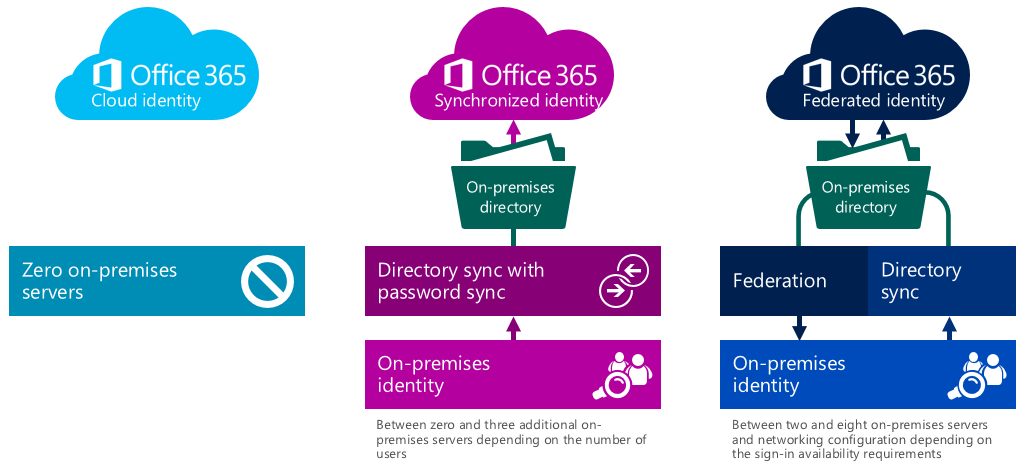
This post is written in reference to the latest Office Blogs post published recently by Paul Andrew  Technical product manager for Identity Management on the Office 365 team, updating us about the various Identity models available within Office 365, Most of the Admins who already work with Office 365 environment and people who has attended Microsoft MEC and Teched Sessions and part of the Office 365 Community would have been aware about these Identity models wherein this is shown at multiple instances to ensure that we understood these Identity models available to use with Office 365 clearly and know how they vary from one another and choose the best one that suites our requirement.


This a where to post where I am referencing this excellent blog post today to readers and also happy to get it added under my Office 365 section as this is one of the vital post that every Office 365 Admin should read and understand amongst other vital topics, because understanding how the Identity various models function,  when to choose which model and how to implement changes in an existing environment is a crucial topic and forms the basis of every deployment, this is  explained more effectively and descriptively in this post for our ease of understanding, and I would say  its a must read for all of us to know the Office 365 Identity models much better and also have a clear idea on what are the new enhancements added to the product recently and what is yet to come in the future, so that you can stay inline with the Technology.


Read the post here: Choosing a sign-in model for Office 365

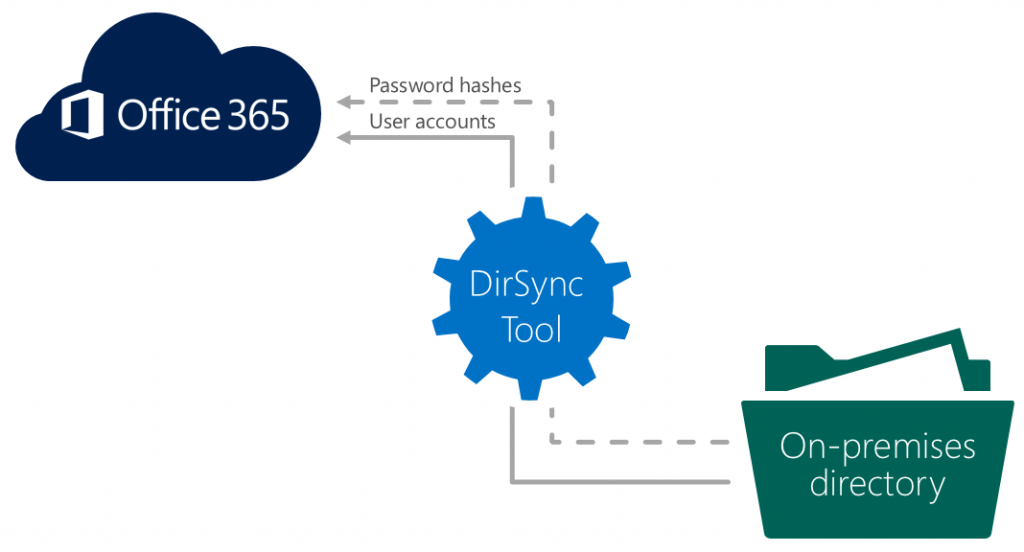
Also I would suggest you to read one more excellent post from the same Office Blogs published earlier on another vital topic Dirsync, after reading this you will have a strong idea on how the Directory synchronization works with Office 365 and its add-on features and future road-map.


Check here: Synchronizing your directory with Office 365 is easy

Monday, May 12, 2014

Exchange 2013 Platform Options Poster

When it comes to Exchange Server 2013 deployment we have various options available and its always good to know all these possible deployment models, understand their pros and cons and choose the best one for your requirement and if you are a Architect or a deployment consultant then knowing this becomes mandate for you to advice Organizations with the appropriate model suitable for their needs providing best solution possible.


Download here: Exchange 2013 Platform Options

Office 365 Trust Center Re-launched

Today Microsoft team updated their Office Blogs with some significant announcements in their News Section towards their commitment for providing highly secured service for Office 365 customers and outlined how they plan to provide best Security, Compliance and Privacy requirements for a vast majority of Customers who adopt their service without comprising at any ends and providing the best service in all possible ways in this fast IT world. Review the below Official blog posts to know more on this, the key part is they updated their Office 365 Trust Center webpage to show more detailed information for the customers to understand things better interms of addressing their Security needs providing best solution possible with Office 365 and to answer their queries on time with available resource and continue to enhance the product and together provide transparency to customers on the latest happenings.
 

Enterprise-grade cloud services: a high bar required for security, compliance, and privacy

From inside the cloud

From Inside the Cloud: Who has access to your data within Office 365?

Update:

In addition to this Microsoft team updated their Security in Office 365 WhitePaper providing clear insight on the Security features made available within Office 365 providing their best Enterprise grade security for all business models.


Download here:  Security in Office 365 White Paper

Update: 

Access the Office 365 Trust Center with enhanced Office 365 SOC audit reports with new trust principles


Announcing the enhanced Office 365 SOC audit reports with new trust principles

Getting Ready for Lync Online Hybrid Deployment

The word "Hybrid" is now everywhere and Lync is not an exception and it too supports Hybrid deployment model like its counterparts Exchange and SharePoint and most Organizations who are moving to Cloud in a Hybrid deployment Model is considering to adopt Lync Hybrid model if they already have a Lync On premises Environment in place to meet the needs of Organizations highly available Enterprise Solution Architecture without compromising on few Enterprise grade features made available to users without productivity impact, thus increasing productivity and end user experience meeting Organization's goals.

When you adopt Office 365 for Exchange Online let say for instance, you will get Lync Online, SharePoint Online license along with it and you are not going to pay anything separately for using them and it covers under your Enterprise License and when you have this option available why can't you expand your needs to provide additional benefits to your users and to your business which can be made at ease and all you need is to do some proper planning and evaluation over the available options and implement the features to your production. Though this is easy to say there are many factors included in it which is always known and just to give you a new approach I said this, but even this is possible and still some Organizations taking this approach and they are on the move to explore new things and adopt it overtime, as of today Technology is expanding minute by minute.

let's get in to our topic, I reviewed few major resources when I start reading and working over Lync Online and Lync Hybrid and though of writing this post to share it with you for your future engagements and understand where we head to with Lync.

I would first suggest you to review this below Official Microsoft Blog post providing key updates on Lync Conference 2014 Keynote speech to know what is new with Lync 2013 and what is yet to come, so that you will know how Lync is revolutionized the IT world and soon we can see Lync everywhere as it is now getting called as the next generation voice system which will replace the traditional PBX system overtime.

From unified to universal, the next stage for communications

Once you get ready to move to Lync Online you need to understand what is available and what is not first and then you need to evaluate whether I can go for Lync Online or do I need to have a Hybrid Setup in place to met all my requirements up to my business needs and to accomplish all these what do I need to do etc. and plan accordingly, Before you get in too deep you need to get at least an overview on this first to begin so read the below two vital TechNet articles as a start. 

Plan for Lync Online in Office 365

Plan for Lync Server and Lync Online coexistence

Once you read the above articles you would have now have an idea as updated above on the deployment models and the next step is to decide what steps do I need to take if I go for each options, If you are planning for Lync Online alone then all you need is to enable to License for your users if you already have a Enterprise License available with Office 365 and configure the DNS records for Lync as guideline by Microsoft for your domain, you can check my Office 365 DNS records post to know more on this in a nutshell.

Once you decide to adopt Lync Hybrid model the first thing you need to know is what version of Lync On premises I am running,  if I have one already deployed and whether it is supported and what is CU that I have to be in if I am running a supported version to go for Hybrid in first place, then you need to check which user needs which feature, who can stay On premise and who can stay on Cloud, when can I start the new Lync Server deployment if I don't have one and planning to go for Hybrid as I am already having Office 365 plan with Lync Online etc. and then clearly understand the limitations and complexity over each model and then proceed with your next steps.

To make things clear, I would suggest you to utilize the most important Technical documentation available from Microsoft team over this Lync 2013 Hybrid deployment provided with their reference Topologies for better understanding.


Download here: Lync Server 2013 Reference Topologies for Enterprise Hybrid Deployments

You can also check this excellent ProExchange Blog post referenced below for your ease of understanding which I came across recently.


Check here: Lync Server 2013 Reference Topologies for Enterprise Hybrid Deployments Blog post

 Once you read things its time for you to see things in action and its always good when some one explains things to us visually and Microsoft is always good at doing this through their various technical events for their different product line along with their strong Technical documentations and also I should not leave our experts who even contribute to the maximum from their end to get you on the move with the Technology.

Take a look at the below Lync Conference 2014 video session below to get a deep dive Experience on the topic which will eventually make you ready for your Hybrid deployments and migrations.


Access here: Lync Online Hybrid Deep Dive

Finally, you would now have a strong Idea over Lync Online and Lync Hybrid deployments and all you need is to utilize these resources and few other available on the global community and advance your learning and deployment skills which would for sure give you new experience and share it to the community as your contribution which make us all in the same space in doing more with the product and enhancing our support experience to end users, Thus enhancing Organization's business needs at both ends.

Additional Bytes

If you are customer who already has users enabled for Lync Online and you plan you deploy Lync On premises and instead of going for a Hybrid model you plan to migrate all your users from Lync Online to Lync On premises then the below TechNet walkthrough will help you out with the requirements and provide step by step process of performing this successfully .

Check here: Moving users from Lync Online to Lync on-premises

TechEd North America 2014 Event Started Today!!!

The Great event of Microsoft for this year " TechEd 2014" will begin today and Microsoft’s Brad Anderson, Corporate Vice President, Windows Server and System Center Program Management will deliver his Keynote session giving us some great heads-up on Microsoft Roadmap towards the future and even this year we have some great sessions available from Microsoft and Experts over various platforms and most importantly this time Microsoft team is providing Live stream of the Teched Events for people who are not able to make it up to the live event, All we need is to register and attend the event virtually and also you can follow the TechEd Live Twitter Stream for continuous update on the Events and once the sessions are completed you will get the Presentations and Videos made available at Channel 9 under Teched North America 2014.


Review the Session details and register for Live Stream as guided in the below TechNet blog

Check here: Invitation to Week-Long TechEd 2014 Live Streaming

* This time Teched NA 2014 is having more great sessions that covers various aspects of the Technology and you can review the Events page for clear details and navigate to Channel9 to access the contents.

* You can now download the Teched NA 2014 Videos at one go using the below script from MVP Paul Schmidt

Check here: Script to Download All the TechEd NA 2014 Videos and Slides

Thursday, May 08, 2014

Disable Autodiscover SCP Lookup for Outlook Clients with Office 365

I am writing this post today with my recent experience towards the Outlook client Autodiscover SCP look-up behavior and its impact in my Hybrid Exchange deployment, experienced few months before which unveiled few new things to me and this one applies to all sort of deployments with little variation per environment design and I thought of writing a post on this a while ago and got chance today to share my experience which would be helpful for you with your environment.

Every Exchange Admin knows how critical Autodiscover service is in an Exchange environment and above all he should have strong knowledge on how the Autodiscover needs to be configured and how it works internally and externally, what are the requirements to make it work seamlessly, how the outlook client performs the Autodiscover look-up when it is connected to internal network and how it varies with external network, and know how to troubleshoot issues when things go wrong on time, because without proper Autodiscover configuration you will end up in major service interruption. Thus impacting end user experience at larger scale.

This above said essentials are applied to all types of Exchange deployment from traditional single AD forest deployment, Cross forest deployments etc. and also applies for Office 365 fully cloud and Hybrid deployment.

We have excellent articles and whitepapers available over the Autodiscover topic already from Microsoft team and experts, So I am not going to cover them here instead have referenced them below for your ease of reading and understanding the subject.

If you are new to Autodiscover and also have some dilemma towards how Autodiscover functions in a Exchange Environment, what it is used for etc. then I would suggest you to learn Autodiscover fully by reading these below white paper and Blog posts from top to bottom before you proceed further.

Once you complete reading them you will master the Autodiscover. These resources are the ones I read when I started working with Autodiscover a while ago and gained more knowledge in the subject by working with various issues overtime in my tenure. There are more related resources available in the community and below are the best ones to my knowledge to begin and also it covers some deep dive stuff too. You can advance your learning on your own by exploring the topics and expand it as desired.

White Paper: Understanding the Exchange 2010 Autodiscover Service

Autodiscover, DNS, Certificates, and what you need to know  - Elan Shudnow MVP

Exchange & The Autodiscover Web Service  - Rhoderick Milne MSFT

Once you guys are ready, lets get in to our topic, As you now know how the autodiscover look-up occurs with in a Exchange Environment by Clients connecting through Internal and External network we begin here.

Outlook Client from 2007 relies on Autodiscover and when you read from the above posts it clearly says that first thing it will check when connected to the internal network is the SCP (Service Connection Point) in your AD through which it obtains the necessary configuration and serves the outlook client to get the required URLs to make a proper outlook configuration. Also you'd now come to know how vital SSL certificate is for Autodiscover and also for other related services to work for Exchange, so if you have more CAS servers in your environment you will end up adding more names to your Cert and also using Self signed cert is not advisable and If you about to publish your environment to be accessible for outside world you will for sure go for a 3rd party Public CA and this makes additional cost to your cert when you add more FQDNs of your CAS Servers ( Keep in Mind CAS Array name does not need to be available on the Cert only you will add the CAS Server FQDNs as needed if you don't have a common name space) so the best way is to use a common name space like "autodiscover.domain.com" for all your CAS servers as a Autodiscover namespace and configure the Client Access server AutodiscoverInternalURI  for SCP and also the External URI on the internet facing CAS accordingly and get things simplified and load balance the Autodisocover requests through your Load Balancer, if you are using "Split-DNS" then you can utilize the same cert and configure your internal and public DNS end points accordingly for Autodiscover.

Though this is done, the next major thing you would have noticed is the "AutodiscoverSiteScope" which clearly makes your Outlook to connect to the appropriate servers with in the site boundary you define, thus saving lot of time and if this is not set properly then you will end up with your client choosing a random server in a different region  for connection, thus causing outlook performance issue due to latency and breaking your HA and SR design if you plan any and also potentially cause other few issues which we are about to discuss soon. So defining proper Sitescope makes your life easier and clients to work smoothly.

Next, lets come to the Autodiscover look-up cycle if you would have noticed how the look-up begins and how it go through the next cycle one method fails towards the other as shown below obtained from one of the reference article in-accordance with our topic and this remains the same with all internally connected outlook clients from 2007 through the latest 2013.

First -> SCP Lookup -> Fails

Next -> https://<smtpdomain>/Autodiscover/Autodiscover.xml -> Fails

Next -> https://autodiscover.<smtpdomain>/Autodiscover/Autodiscover.xml -> Fails

Next -> http://autodiscover.<smtpdomain>/Autodiscover/Autodiscover.xml -> Fails

Next -> SRV record query for _autodiscover._tcp.<smtpdomain> - Success 

*One Key point here is to note is how Organizations decide to publish their Autodiscover to External clients and if you are an On premises customer then you will publish it through your TMG or any other alternative and configure the DNS end point accordingly and for doing this the key requirement is the autodiscover name space you use and the corresponding SAN entry in the SSL certificate and most Organizations depending up on their need and cost effectiveness either go for the "autodiscover.domain.com" SAN name or will use the DNS SRV record method instead to point to a common name space which is already made available on the cert like OWA name space which will in-turn point to the appropriate end point in DNS and serve the client Autodiscover request. Publishing Autodiscover externally is mandate when you go for Office 365 and you can adopt any one method stated above per your needs and the most suggested one is to use the separate namespace for autodiscover using A record in public DNS for Hybrid.


We would concentrate on the SCP and Autodiscover DNS record with respect to Office 365 both fully cloud and Hybrid deployment, so if you understood things correctly the way Outlook client connected internally which will first look for SCP and this behavior remains the same with the Internal Outlook clients connecting to Office 365 in both fully cloud and Hybrid deployments.

Autodiscover end point is the key for the Outlook connection to work with Office 365 and when it comes to fully cloud deployment we will have the Autodiscover endpoint "Autodiscover.domain.com" in Internal DNS configured to point to Autodiscover.outlook.com which redirects the client request to Microsoft Servers successfully and when it comes to Hybrid deployment we will point the "Autodiscover.domain.com" to the Hybrid server which will do the redirection accordingly to O365 per deployment guidelines.

So from above points its clear that we rely on the DNS records and not the SCP for the Autodiscover to work with Office 365, so in this scenario if you have more CAS servers in your environments and you will end up with multiple SCP records and though there is a site scope defined still the Outlook client has to pass through the same Autodiscover logic when it connects to Office 365 and thus causing additional work for the client through multiple redirect attempts before the client actually gets through all the SCP look-ups to get failed one after the other till last, after which it fallback to DNS and get redirected successfully and if you have crossed the default look-up limit (10 ) which is inclusive of all redirect attempts you will end up with your client not being able to connect to Office 365 using Autodiscover as it exceeds the maximum redirect limit and fails to connect.

You can review the excellent post from Good Workaround blog explaining the above said facts for your clear understanding with real time examples with solution which helped me out as an add-on during my experience.

Outlook AutoDiscover redirect limit (0x800c8206)

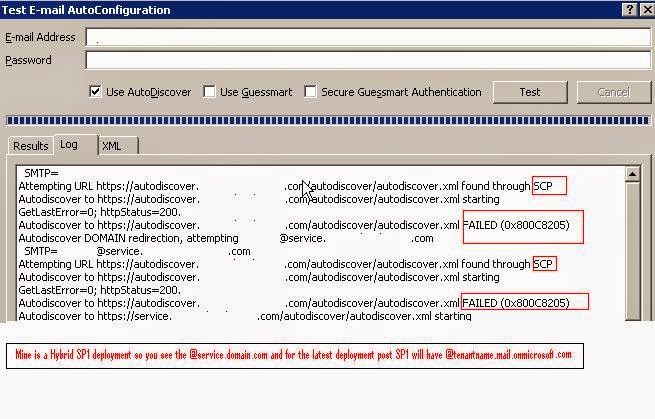
See the below example on the same and inhere it shows the SCP failure with 2 CAS servers and if you have more it will fail for all and gets counted towards the redirect count.


If you understood the post clearly you will come to know how things work with Outlook client in Office 365 Environment and what is the impact of SCP and how to over come it, lets add some more add-on points to the above resolution from my experience which varies from fully cloud to Hybrid deployment.

Also when it comes to Office 365 it is still considered as a cross forest look-up and there is a timeout limit for Autodiscover operation and you may need to address this too if you come across any issues here, but from my knowledge the major issue people will face in a Lager Exchange environment is towards the Autodiscover Sitescope defined to make a CAS server in one site to serve the needs for a client connecting from another site by defining multiple sites under the sitescope and this applies the same for Cross site Exchange deployment involving multiple servers at both ends and in our case its between our On premises Exchange server and O365 in Hybrid model, Even this is clearly updated to you in a nutshell in the above post.

Check here to know about the Autodiscover timeout limit : Modify the Time Limit for Autodiscover Operations

So setting AutodiscoverSiteScope is good for staying safe but will it be useful if you are a fully cloud customer and your goal is to stay on cloud and you still have a On premise Exchange Server just to mange objects and for other reasons with no mailboxes hosted On premises which is a multi role server and has a CAS role installed to it and you have successfully decommission the Hybrid setup, At this stage since this server is a part of your Exchange Organization it will be then counted in the Outlook Autodiscover look-up with its SCP per exchange design and Outlook client behavior. So the best thing here is to disable AutodiscoverInternalURI itself on the CAS server end so that Client will end up using the DNS endpoint which will properly be set to Cloud and things would work properly.

You can disable the Autodiscover using the below cmdlet

Get-ClientAccessServer | Set-ClientAccessServer -AutoDiscoverServiceInternalUri $null

Remove the role CAS Role from the server leaving other roles intact if you need, but I would recommend let it stay as it is, because it will be useful for you to re-establish Hybrid deployment again at ease through HCW when needed, You have moved to Cloud now successfully and configured things accordingly lets say at a later stage there comes a critical requirement and you need to host some users On premises again need a Hybrid, so being proactive is good as Organization dependency varies overtime, but this is still your choice.

When it comes to Hybrid deployment which is fully functional and your goal is long tern co-existence and you host mailboxes both On premises and cloud, then we cannot disable the SCP because your entire On premises deployment relies on the SCP and this is preferred method for Autodiscover to work in an On-premises Environment and here is the tricky part, which we discussed above will come in to picture. Since we cannot disable the Autodiscover SCP records we end up with the Autodiscover Client time out issues if we have more servers in the Environment which are falling beyond the default limit and also AutodiscoverSiteScope configuration cannot help us if there are more servers within the site itself which will make the count more than the default limit . So the best approach here is to use the Registry settings workaround stated in the above Good Workaround post and the below Microsoft Knowledge base article that contains the Registry key which will control the Client SCP look-up behavior and shows you with a live example using Outlook Client Test Email Autoconfiguration results for reference. Setting this registry value as shown will stop the client from performing the SCP look-up and it will directly use the next step to attempt the connection which is our DNS endpoint (Autodiscover.domain.com) and connect accordingly.

Check here : Unexpected Autodiscover behavior when you have registry settings under the \Autodiscover key 

Registry

HKEY_CURRENT_USER\Software\Microsoft\Office\14.0\Outlook\AutoDiscover]
"ExcludeScpLookup"=dword:00000001


You can either do this on a whole for all users irrespective of Cloud or On premises or do it selectively alone for Cloud mailbox users and leave the On premises users outlook client as is. If you want to disable Autdodiscover SCP Look-up on a whole including your On premises Environment you need to ensure that your have configured your Internal Autodiscover DNS record properly which will server the needs for both On premises and Cloud  seamlessly. If you go with this route you have the ability of forcing this changes through GPO on a whole environment or selectively at ease to get things addressed at the earliest.

Also one more point to add above all,  If you are having less number of servers in a Hybrid deployment within the limit then you need not do this on urgent basis, but this is still an advisable one to be performed to ensure that your Cloud user's outlook client gets to the appropriate end point on time with out having to go through multiple re-directs which typically enhances the client experience.

Finally, you guys now understood the reason behind the Outlook Client behavior and the role of SCP with Office 365 and why I recommend to disable this and what benefit you will get and the proper planning you should take care when you are in a Hybrid deployment. I believe this post will be a good read and new experience for readers and for sure assist you to understand how Autodiscover plays a vital part in your Exchange and how you can play around with it safely for a better end user and support experience.

Always ensure that you set your Autodiscover correctly to make things work inside your Organization effectively and always validate it often though you have issues or not periodically and you can utilize the easy way of checking things interms of both On premises and Office 365 environment with the help of none other than our Remote Connectivity Analyzer Tool.

*Additionally, Read the below related Excellent write up from MVP Dave Stork on his blog performing one more Optimization over Autodiscover.

Optimizing the Outlook AutoDiscover process by skipping the root domain query 

Update:

Here comes the Official Knowledge base article from Microsoft relevant to this topic with the same workaround mentioned above.

Outlook hangs when connecting to an Exchange Online mailbox that was migrated from on-premises Exchange Server

Its great that now we have a knowledge base article available handy in place with the workaround to assist customers on time.   

Update:

Read the below excellent write-up from our Rhoderick Milne MSFT on Office 365 Autodiscover Lookup Process and experience the hidden behavior of Outlook 2013 Autodiscover process and how it varies from Outlook 2010, A must read I would say, that adds more value for your learning on this topic.

Access here: Office 365 Autodiscover Lookup Process

Update:

Another great post from Rhoderick Milne MSFT to solve the Autodiscover confusion on Hybrid deployments

Access here: Office 365 Exchange Hybrid Deployments Busting The Autodiscover Myth

Update:

Understanding how Hybrid Authentication works is essential for every IT Pro who works with Microsoft Exchange On premises and Online.

Access here: Deep Dive: How Hybrid Authentication Really Works

Update:

Understand how Hybrid Free/Busy is working

Access here: Demystifying Hybrid Free/Busy: what are the moving parts?

Update:

Access the below support article to troubleshoot free/busy problems that occur in a hybrid deployment of on-premises Microsoft Exchange Server and Microsoft Exchange Online in Office 365.

Access here: How to troubleshoot free/busy issues in a hybrid deployment of on-premises Exchange Server and Exchange Online in Office 365

New Update:

As More mailboxes are migrated to Exchange Online, Microsoft team decided to make significant change to the Autodiscover behaviour starting from Outlook 2016 version 16.0.6741.2017 (C2R), and give priority to Office 365 and Now Autodiscover process checks for the availability of Exchange Online Mailbox first, and below is the new process


  • Check for restart scenarios (rare).
  • Check for Local Data preference - Local Autodiscover.xml file by using GPO
  • Check for Last Known Good (LKG) data.
  • Check for Office 365 as priority.
  • Check for SCP data.
  • Check root domain
  • Check Autodiscover domain.
  • Check for Local data - When there is no GPO specified in Step 2
  • Check for HTTP Redirect.
  • Check for SRV data
  • Check for O365 as Failsafe (when all other options fail)


More details are provided in this support Article: Outlook 2016 implementation of Autodiscover

Due to this new change, there a few issues faced by Users as updated in the below User voice post covering the scenarios

User Voice: Stop prioritizing O365 for Autodiscover

But the response from Microsoft team states that there will be no changes made to the new process and they will continue to optimize for the Office 365 experience, This created a bit of headache for the Administrators and the current solution is to follow the workaround described in the below support article and exclude Office 365 (ExcludeExplicitO365Endpoint) from the list of locations checked by Autodiscover.

Access here: Unexpected Autodiscover behavior when you have registry settings under the \Autodiscover key

Stay tune for more updates...

Wednesday, April 30, 2014

New PelNet Tool from Microsoft

Microsoft team released a new Tool called PelNet ( PowerShell Telnetting) created by Michael Hall MSFT which is typically a powershell script file which will analyze your Organization Mail Flow by validating the send connectors and smart hosts for appropriate configuration in scenarios where you cannot use telnet in your environment and you need to validate the configuration on a large environment spanning through datacenters with multiple Exchange and Smart host servers involving in the mail-flow Topology.

This Tool address these needs by providing a possible way to check the configuration from one place based on your inputs provided as needed at ease, and also assist us in troubleshooting mail-flow issues in the Environment.


Access the below EHLO blog post to know more on this tool and also download the same and test it and share your feedback to Microsoft team for further enhancements.

Access here: Released: PelNet

Update:

PelNet v2.0 released with some new features, review this below EHLO Blog post for more details.

Review here: Released: PelNet v2.0


Friday, April 25, 2014

Guided Walkthroughs At One Go!

Microsoft team recently released many Guided Walkthroughs for troubleshooting various issues with Lync, Exchange, SharePoint Server and Office 365 at ease with guided steps, workarounds and fixes for most of the issues and I have wrote few earlier posts once these Walkthroughs are released publicly to us one after another, Today they published the below Knowledge Base article which contains the cumulative collection of all of these available as of now referencing them under a single window, you can utilize and bookmark this single vital webpage link to access various walkthroughs at ease depending upon your requirement.


Access the KB here: Guided walkthroughs for Exchange, Lync, SharePoint, and Office 365

Wednesday, April 23, 2014

Forefront Identity Manger becomes Microsoft Identity Manger soon!

In today's world Technology changes occur rapidly and Microsoft is not an exception and tops on these events, Recently many great enhancements and Innovations are made to their product line interms of both On premises and Cloud platforms and significantly took their business to the next level. There are many notable name changes occurred recently on their major products like "Windows Azure became Microsoft Azure" and "Sky Drive became One Drive" and along with this now the renowned Forefront Identity Manger (FIM) is getting a new name as  Microsoft Identity Manger.

Microsoft team already published an article stated that most of the Forefront products will be discontinued and few of the products will be under extended support and will not be sold to customers and also soon they will release an advanced version of Forefront Identity Manger product by 2015 and today they published a blog post on the same with their road map and official announcement regarding the new name change for the "Forefront Identity Manager" to "Microsoft Identity Manger"

Below is the quick preview of New features available with this next release

  •     Hybrid scenarios that leverage cloud-based services delivered in Microsoft Azure, including Multi-Factor Authentication, Azure Active Directory application integration, analytics and reporting
  •     Support for the latest platforms and mobile devices with modern user interfaces  
  •     Improved security with additional controls, analytics and auditing of administrative and privileged user identities and their access to Active Directory, Windows Server and applications.
More information on this new updates and Announcements is available in the below blog posts, review the same to know more...

Forefront Identity Manager futures

Forefront Identity Manager vNext roadmap (now Microsoft Identity Manager)

As stated in the blog post we can expect to hear more on this soon in the next Teched scheduled for this 14 May 2014.

Tuesday, April 22, 2014

Exchange Server 2013 SP1 Architecture Poster Now Available

Microsoft team recently released the new updated Exchange Server 2013 SP1 Architecture Poster for general audience, this poster contains all the latest significant updates done to the product explained visually with clear description , you can refer my earlier blog post on Exchange Server 2013 SP1 where I referenced all the available articles, blog posts and references from Microsoft and Community members to know more on the product.


Download here: Exchange Server 2013 SP1 Architecture Poster

*You can access here to download various other posters available from Microsoft team at one go.

Build Your Own Lync 2013 Intranet Site

Lync 2013 become the most prominent client now with Microsoft Lync , Though it is installed as a full client or basic it comes with few enhanced features comparing to its predecessor and Microsoft team already made Official announcements to update the Lync Client for Organizations who are using  Lync Online to upgrade at least to Lync 2013 basic during the Wave 15 Service Upgrade, Though Client Interoperability with Lync 2010 Client is still possible with Lync Server 2013 the recommended client to utilize all the features is Lync 2013.

Lync 2013 client roll-out is something which can be performed now within the current environment without any major downtime or service impact for users because the product installation does not remove the Lync 2010 client by default and it will work side by side and user have the flexibility to switch clients till they are comfortable in using Lync 2013 at the earliest.  With this being said to make the users aware about the new Interface and features with the Lync 2013 Client, Organizations should plan to provide end user education through training programme and best approach is to create a Intranet site for providing user guidance online for users through which they can refer and get to know how to work with the new client and additionally you can create FAQs and Known issues section on to the site to answer most of user's support questions and also provide update about common known issues and fixes.

To make this possible Microsoft team recently released the Lync 2013 Custom Intranet site package available for download which contains some vital walkthroughs, how to videos and presentations available for Lync in a webpage format through which users can get to know how to use Lync at ease and this provides you adequate resources handy to build you own Intranet support site for Lync and enhance end user support experience.


Download here:  Microsoft Lync 2013 Custom Intranet Site

Monday, April 21, 2014

Office 365 system requirements Overview

I am writing this post referencing the updated Office 365 System Requirements, When you plan to migrate to Office 365 or plan to use Office 365 in a Hybrid model there are many things to consider and completed prior you adopt the service based on your requirement, doing this is a mandate one to use the Service without interruption and work in a supported configuration with the Service per Microsoft Guidelines.


Office 365 runs with the latest and greatest servers in the Cloud and to work with these latest version we need to step forward to get our On premises environment upgraded to the supported versions of Clients updated by Microsoft team in the below System Requirements page at the earliest, if you have adopted the service and still using Legacy Clients which are not the updated or the supported ones, you may start facing issues sooner or later and there will no longer be any support or fixes available to address these issues at that time and for sure end user experience will be impacted because of unexpected downtime on which Microsoft will not support and take responsibility as they have already updated in their guidelines.

As a Office 365 Administrator its our job to ensure that we met these requirements and create a timeline for this upgrade path and complete it before we face any service issues and also if you are an Administrator who are planning to adopt Office 365 then you need to ensure that your On premises Clients meets these outlined requirements and then proceed further with the deployment.

Most of the Organizations I came across are using Outlook 2007 and IE8 which are no longer supported and if you are one among them, then you need to start planning for your Client upgrade to the latest version or a supported version at the earliest failing which will have serious service impact sooner or later as stated earlier and you can refer the requirements page below to know more on the impact.

Access here : Office 365 system requirements


Wednesday, April 16, 2014

Lync Online New CRL Endpoint Update !!!

Lync Team Blog is updated today regarding the new CRL Endpoint update for Lync Online, this new exception needs to be added to the firewall and all other filtering devices and appliances that comes in the path of Lync Online. This a mandate one to be performed at the earliest to avoid sign in issues with Lync client and below blog post clearly updates us on the same. Lync Online URLs requirements is now updated with this latest requirement and referenced in the blog post for clear understanding.


Check here: Update your firewall now with this new CRL endpoint

To know more on Certificate Revocation list with Lync review the below blog post from our MVP Jeff Schertz

Review here: Certificate Revocation in Lync 2013